


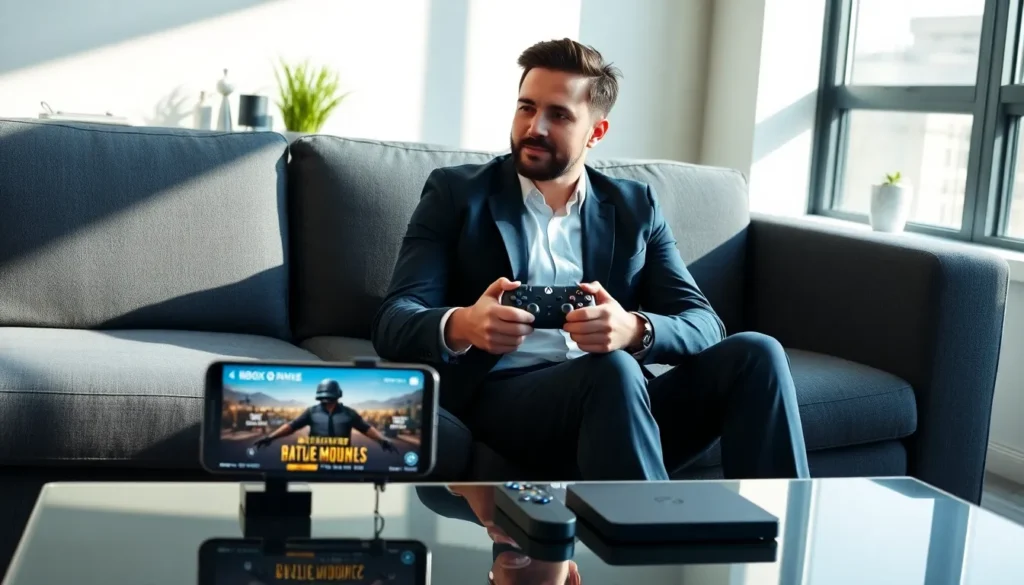
Imagine kicking back on your couch, controller in hand, playing PUBG Mobile without the hassle of touchscreen controls. Sounds enticing, right? With the right setup, you can jump into that thrilling battle royale action using an Xbox controller on your mobile device. If you’re wondering how to achieve this perfect marriage of hardware and mobile gaming, you’ve come to the right place. This guide will walk you through everything you need, from compatibility checks to troubleshooting pesky issues, all while keeping it light and engaging. Grab your controller, and let’s get started.
Compatibility Of Xbox Controller With PUBG Mobile
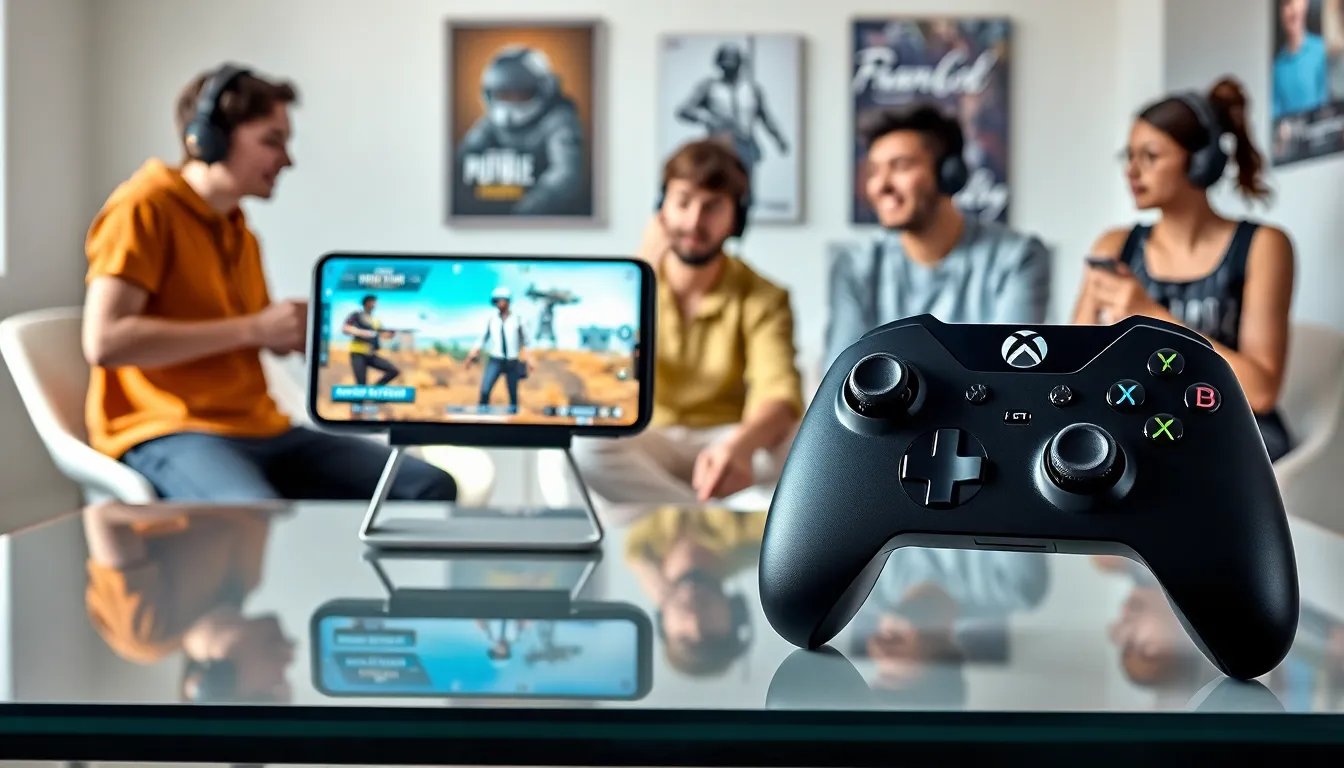
Before diving into the nitty-gritty of connections, let’s clear the air about compatibility. PUBG Mobile does indeed support Xbox controllers, which is great news for gamers looking to enhance their gameplay experience. If you own either the Xbox One controller or the newer Xbox Series X
|
S controller, consider yourself in luck. Both are compatible with mobile devices, thanks to the Bluetooth capabilities that these controllers have. But, it’s essential to ensure that your smartphone or tablet supports Bluetooth connections as well, most modern devices do, but it’s always wise to double-check.
Also, Xbox controllers usually require firmware updates to perform optimally. If your controller isn’t functioning correctly or doesn’t connect, ensure that it’s updated. This quick step can save a lot of frustration. With compatibility out of the way, let’s move on to the steps to get everything connected.
Steps to Connect Xbox Controller to Mobile Device
Connecting your Xbox controller to your mobile device might sound intimidating, but it’s as easy as pie. Follow these straightforward steps to get started:
- Turn On Your Controller: Press the Xbox button in the center of the controller until it lights up.
- Enter Pairing Mode: Hold the small sync button located on top of the controller until the Xbox button starts to flash. This indicates that the controller is in pairing mode.
- Go to Bluetooth Settings on Your Device: On your mobile device, open Settings, then navigate to Bluetooth. Ensure Bluetooth is turned on.
- Select Your Controller: Look for “Xbox Wireless Controller” under available devices and tap it to connect.
- Confirmation: Once connected, the Xbox button will stop flashing and remain lit. Voila. Your controller is now paired with your mobile device.
After the connection is successful, make it your mission to launch PUBG Mobile and prepare for a gaming experience like no other.
Configuring Controls for Optimal Performance
Now that the Xbox controller is connected, the next step is configuring your controls for an enhanced gameplay experience. Fortunately, PUBG Mobile allows players to customize controls, making it easier to optimize how you use the controller.
- Access Settings: Start by launching PUBG Mobile. Once in the main menu, tap on the gear icon for settings.
- Controls Setup: Navigate to the Controls section. Here, you’ll find a variety of options to customize your controller mapping.
- Customize Buttons: You can drag and drop buttons to different locations based on your preferences. Make sure to layout buttons for quick access: for instance, place shooting and jumping controls close together for streamlined actions.
- Test Your Setup: After customizing, it’s crucial to test everything in a practice match. This will give you a feel for how your controller setup works during actual gameplay.
Adjusting Settings Within PUBG Mobile
Don’t forget about other essential settings within PUBG Mobile that can further boost your performance. Here are some options to consider:
- Sensitivity Settings: Navigate to the sensitivity settings in the menu. Adjusting the sensitivity allows for smoother aiming and turning, which can be crucial during intense firefights.
- Graphics Settings: Ensure to tailor the graphics settings according to your mobile device’s capabilities. A good frame rate can significantly enhance your gaming experience. Decrease graphics quality if your device struggles to keep up.
- Audio Settings: Proper audio settings can make a big difference. Ensure that the sound effects are clear enough to hear footsteps or vehicle noises while adjusting volumes as needed.
Tips For Improving Gameplay With Xbox Controller
The Xbox controller can elevate your PUBG Mobile experience, but there are tips to ensure you play like a pro:
- Familiarize Yourself with the Layout: Spend some time learning the button layout on your controller. Control mappings aren’t always intuitive, especially if you’re new.
- Aim Assist: Consider enabling aim assist if available. This feature can help bridge the gap for those who are still acclimating to controller gameplay.
- Practice Makes Perfect: Use the training mode to practice specific actions like aim and reflexes with the controller. The better you get, the more rewarding your gameplay experience will be.
- Use Online Resources: Games often have communities and forums where players share tips and strategies. Don’t hesitate to seek advice or watch tutorial videos to enhance your skills.
Troubleshooting Common Issues
Even the best-laid plans can go awry, and you might encounter some hiccups while using your Xbox controller on PUBG Mobile. Here are some common issues and their fixes:
- Controller Not Connecting: If your controller doesn’t connect, turn off Bluetooth on your device, then turn it back on and try reconnecting.
- Laggy Response: Check your Bluetooth stability. If there’s interference, say from other devices or walls, this could affect performance. Move closer to your device if necessary.
- Button Mapping Not Working: Sometimes, your button configuration might reset. Ensure your settings are saved after customization and try reconnecting if glitches happen.
- Battery Life: If your controller seems unresponsive, it might need a charge. Always check battery levels before diving into a gaming session.